

Quick Start:
- Click Deploy Virtual Machine on the Home tab.
- Choose your Processor.
- Configure your Virtual Machine.
- Monitor your deployment details in the sidebar.
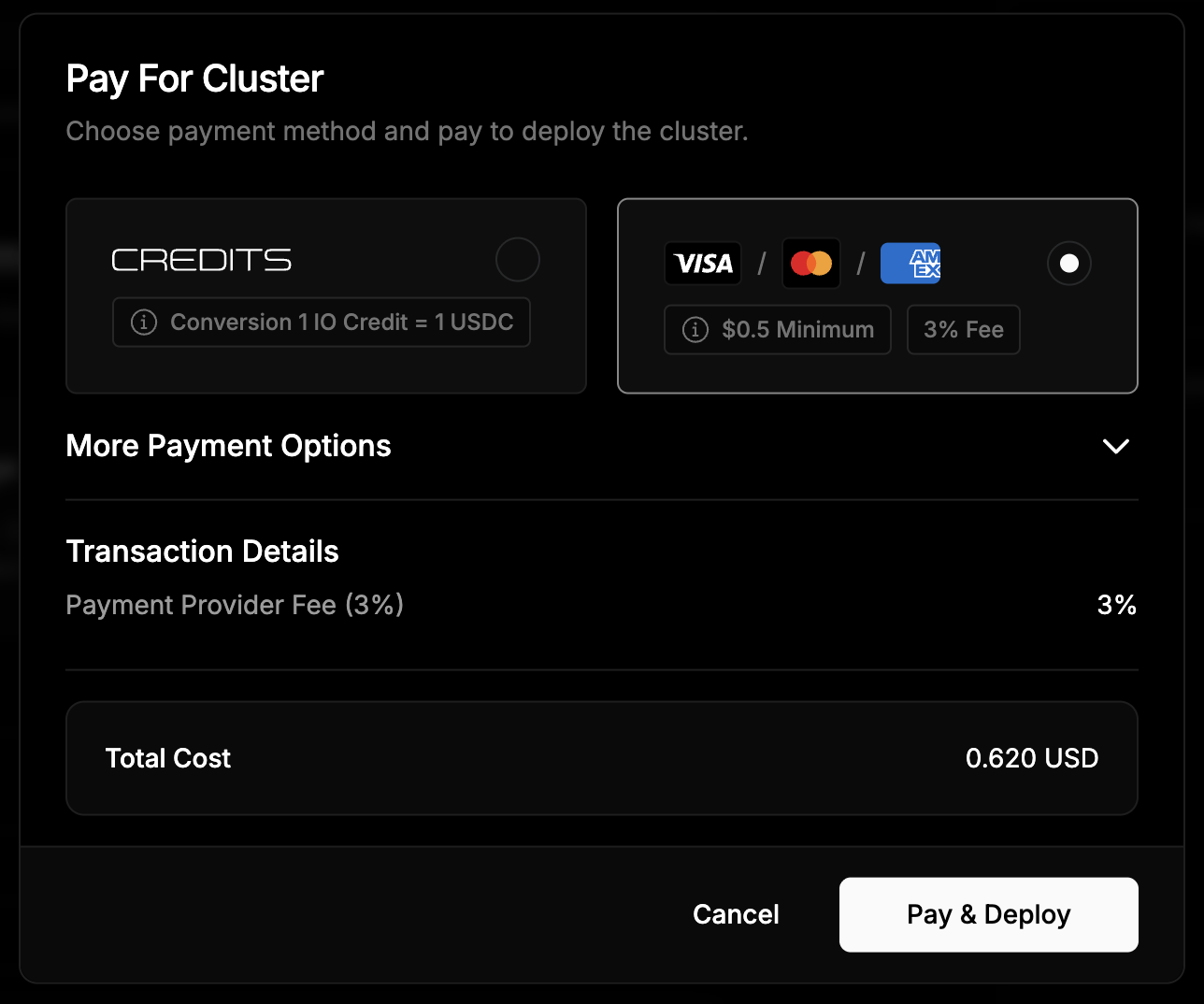
- Once the minimum requirements are met, review and deploy your cluster.
- Start using your Virtual Machine.
- View and manage your virtual machines in the Virtual Machine tab.
Deploying Clusters
1. Getting Started
To begin, click the Deploy button in the Virtual Machine row on the Home tab of the io.net Cloud platform.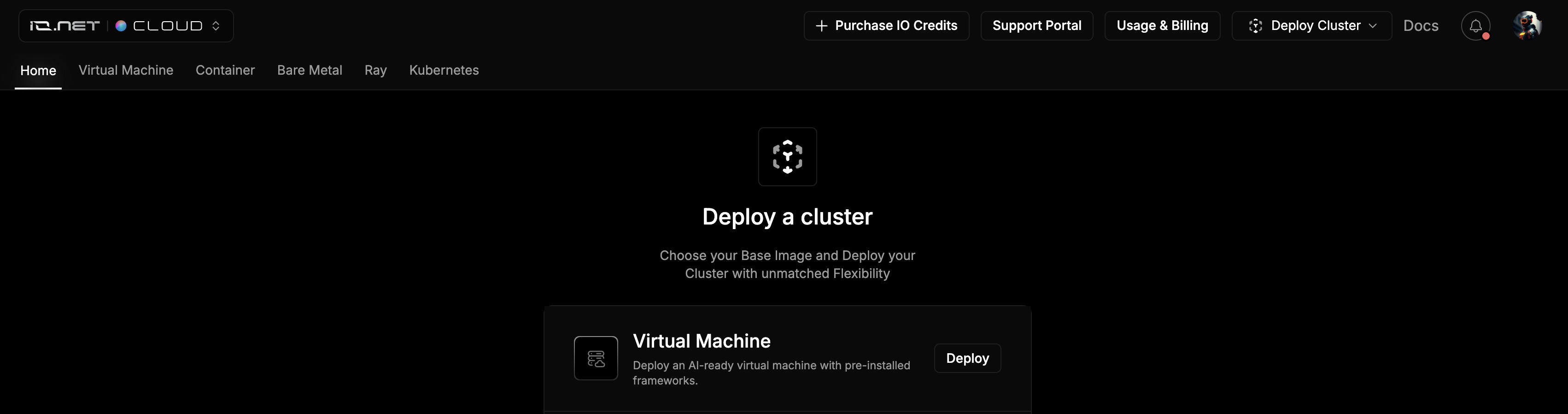

2. Select your Virtual Machine Processor
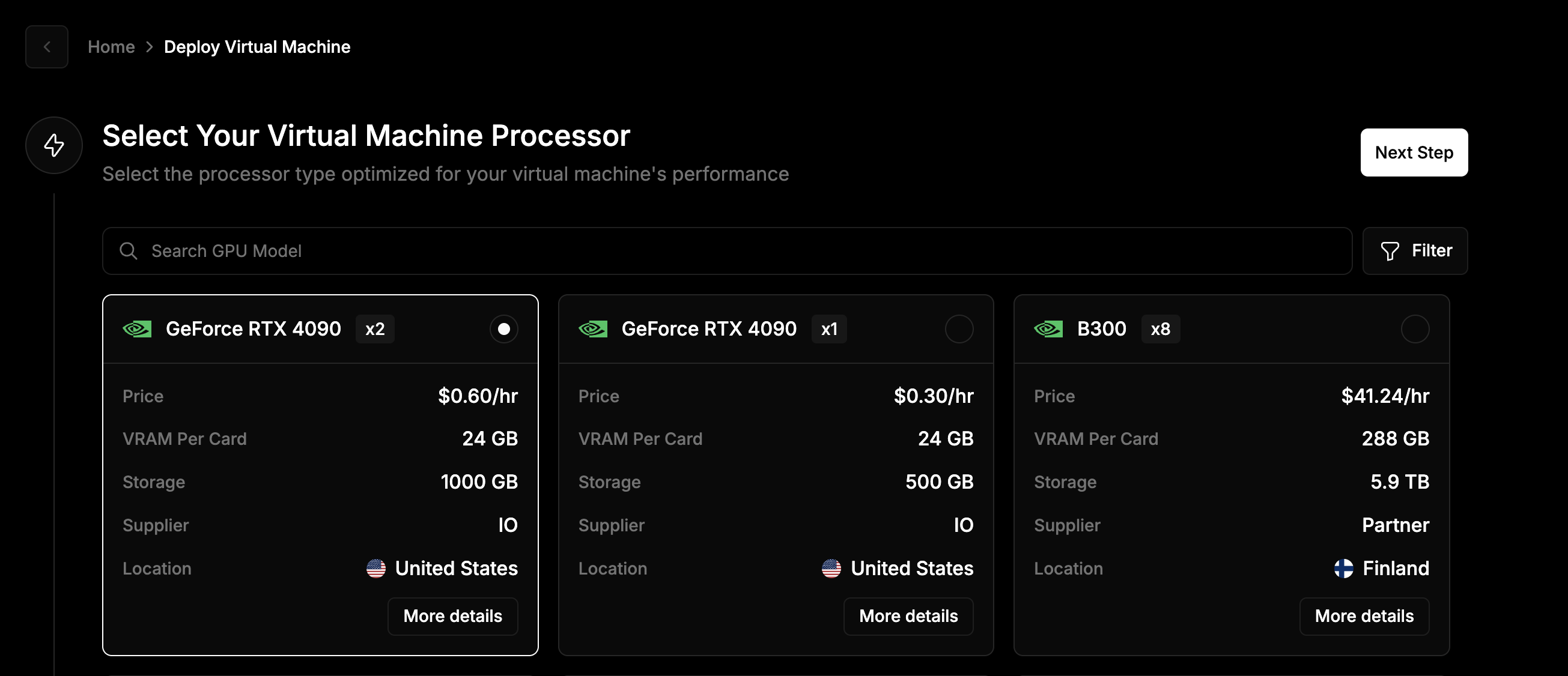
Choose a processor based on your requirements. Each card displays its specifications, including:- Device Availability
- Price
- VRAM per card
- Storage
- Supplier
- Location
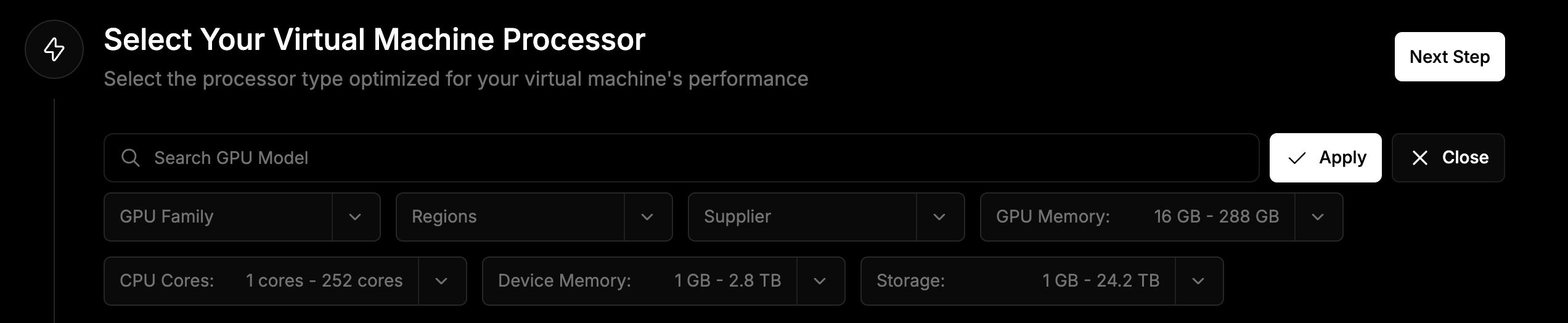
- GPU Family
- Region
- Supplier
- GPU Memory
- CPU Cores
- Device Memory
- Storage
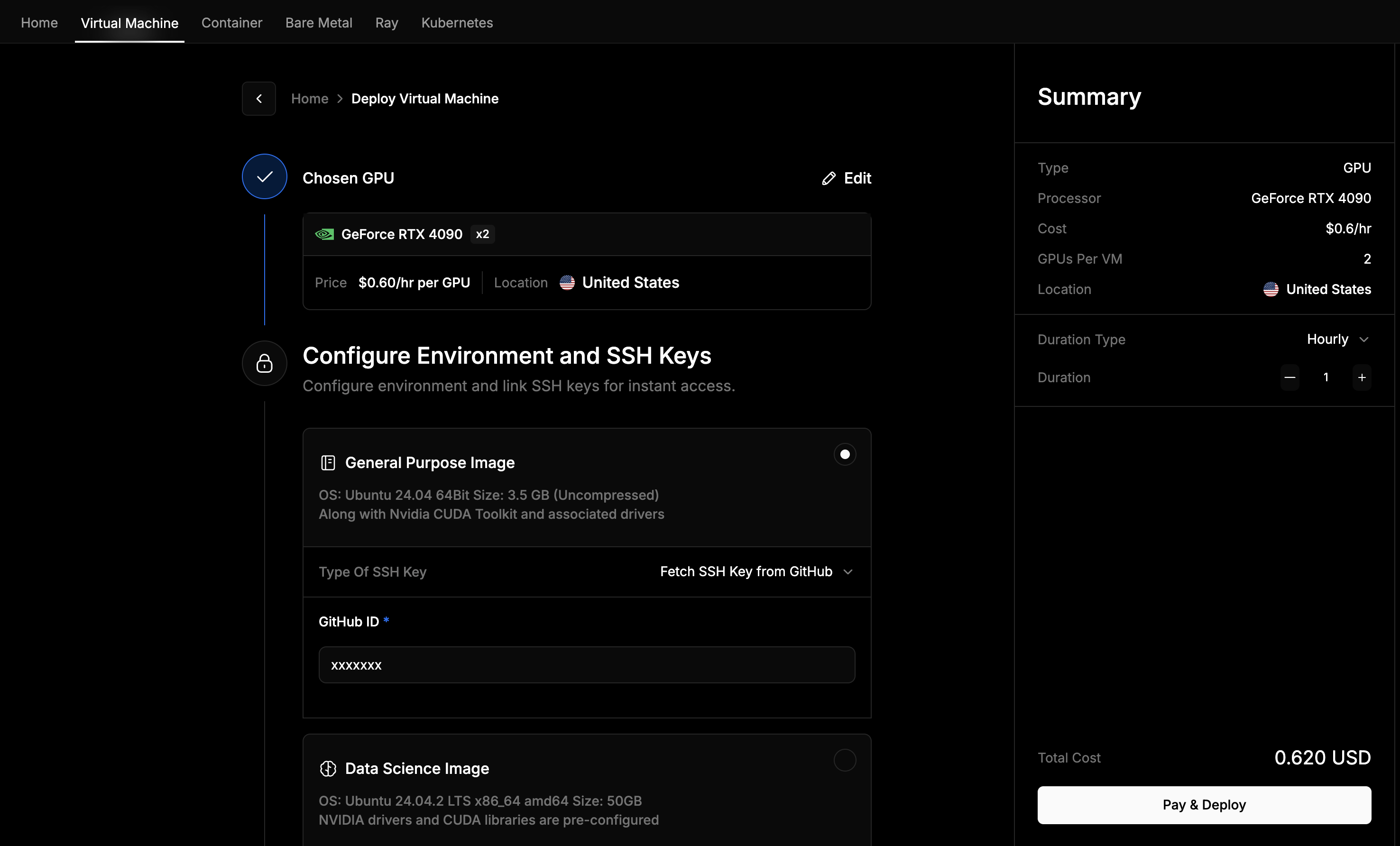
3. Configure Environment and SSH Keys
Set up your environment and link SSH Keys for secure access. You can choose between two image types:Partner-provided clusters include a preloaded image that cannot be changed.To choose a specific image, select a processor supplied by io.net.
- General Purpose Image
- Data Science Image
The General Purpose Image provides a clean, flexible foundation for building any type of compute environment.Specifications: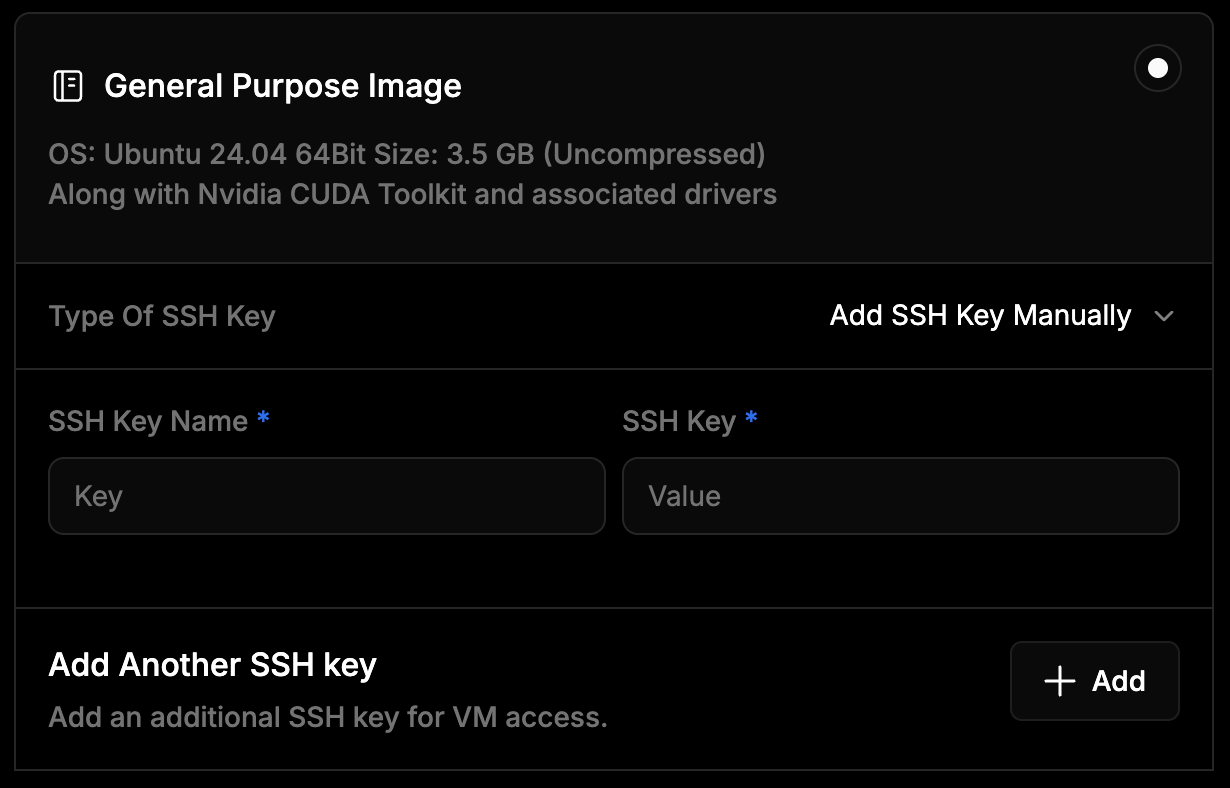
- OS: Ubuntu 24.04 (64-bit)
- Size: 3.5 GB (uncompressed)
- Includes: CUDA Toolkit and drivers
- Ideal for: Users who prefer to fully customize their development environment and software stack.
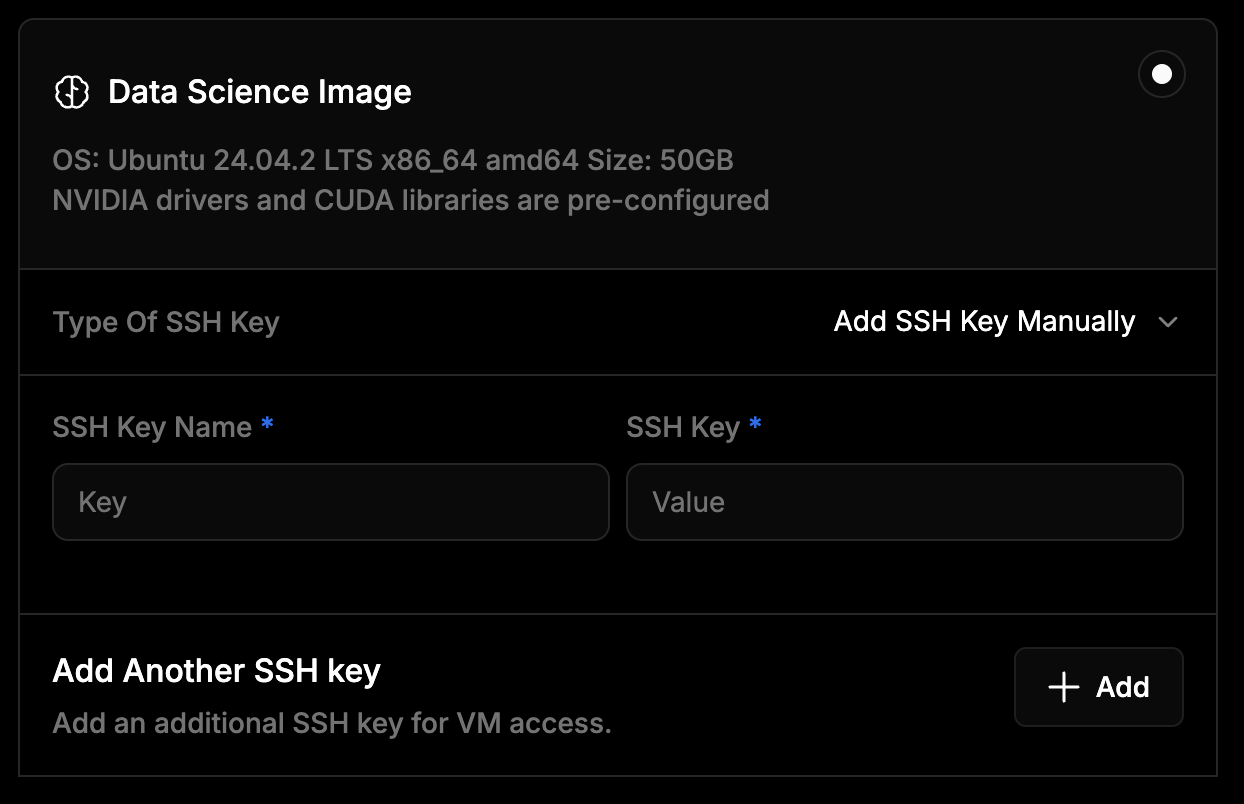
4. Add your SSH Key
Choose one of the following methods to access your VM securely:Partner-supplied clusters only support Manual SSH key input. You must add your SSH key by entering a key name and pasting your public key directly.To use the Fetch from GitHub feature, select an io.net-supplied processor. This allows you to retrieve your public SSH key automatically by entering your GitHub ID, simplifying setup and secure access.
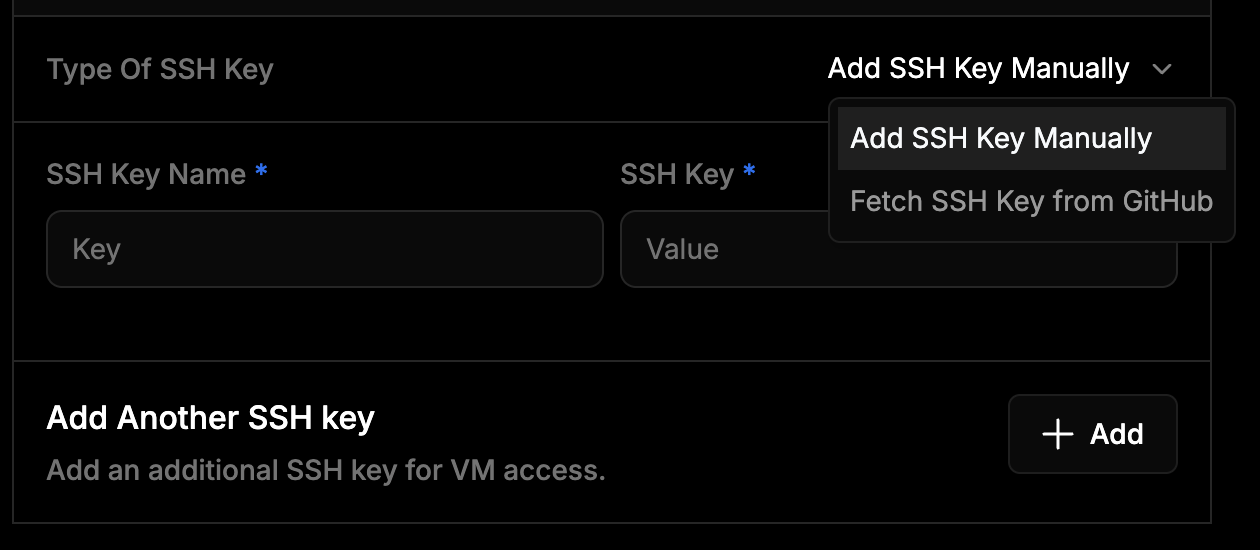
- Manual Input
- Fetch from GitHub
Use this option to add your SSH key directly.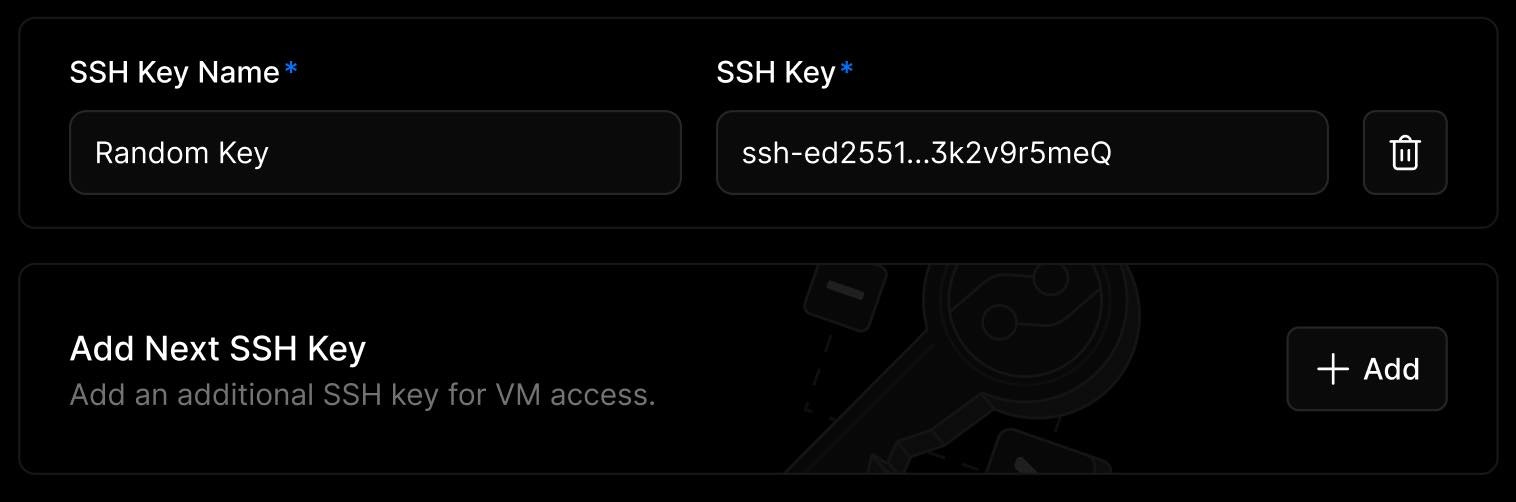
- Enter a Key Name to identify the key.
- Paste your public SSH key into the field provided.
5. Customize your Virtual Machine (Optional)
In this step, you can personalize your deployment by assigning a name and configuring network services.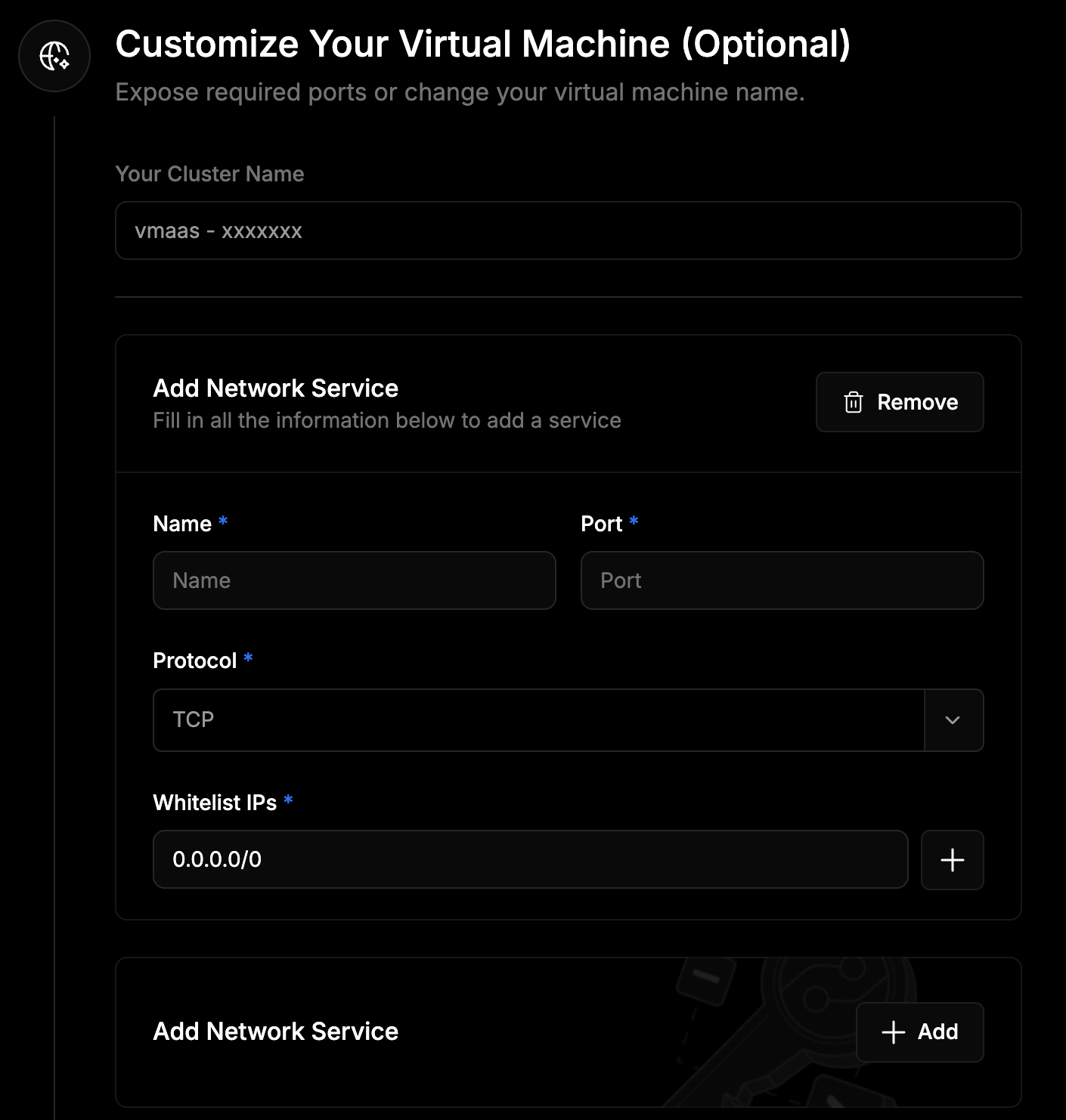
Partner-supplied clusters expose all ports. However, the following ports are occupied by default:
- Port 22 - SSH Access
- Port 53 - System DNS
- Port 5555 - GPU Management
- Port 9100 - Node Metrics
- Port 9400 - GPU Metrics
- Port 12345 and 12346 - Platform Monitoring
- Click Add Network Service
- Provide the required details:
- Service Name
- Port Number
- Protocol (TCP or UDP)
- Whitelisted IPs (IPv4 subnet)
- Click the + button to add each IP to your whitelist.
Port Exposure on io.net
Port Exposure on io.net
When deploying containers, you must expose ports in two locations:
These external ports are used to access your services.
- Inside the VM (Docker):
- io.net Network or Frontend Configuration:
These external ports are used to access your services.
Docker port exposure inside the VM does not automatically propagate to the external network. Both configurations are required for external accessibility.
6. Review and Deploy
A sidebar on the right displays all your deployment details, including:- Machine Type
- Processor
- Cost
- GPUs per VM
- Location
- Duration type (Hourly, Daily, Weekly, Monthly)
- Duration
Viewing Virtual Machines
After deployment, you can view your virtual machines. Navigate to the Virtual Machines tab to monitor performance or launch additional VMs. The Virtual Machines Dashboard allows you to filter clusters by their current status. Click on a specific VM to open its details page. Each Detail page shows you:- Real-time resource usage information
- SSH connection details
- Billing and usage insights
Connecting to your Virtual Machine
- Locate the SSH Access field on your cluster page and copy the provided command.
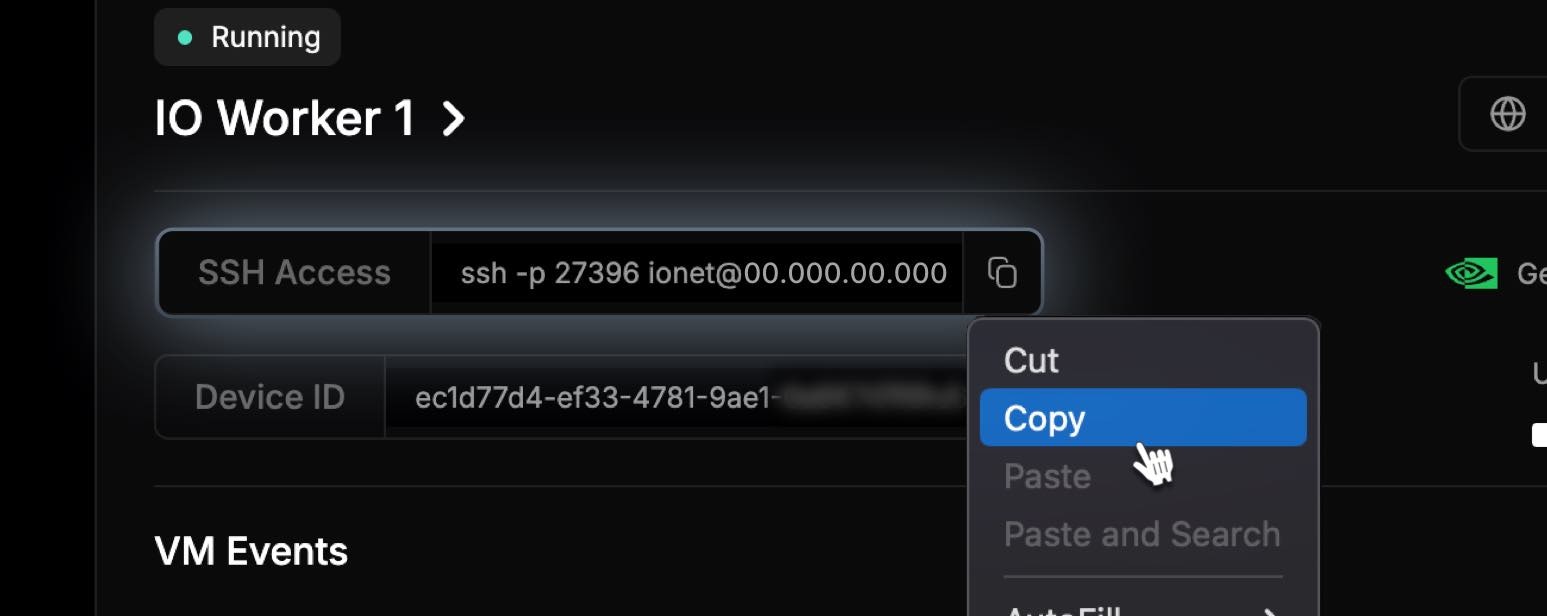
- Open your Terminal and paste the command, then press Enter.
- When prompted to confirm the connection, type yes and press Enter.
- Once connected, you will see the welcome message and gain access to your VM through the SSH terminal.